Best Acer Monitor Settings for Gaming: Complete Guide for Smooth Gameplay
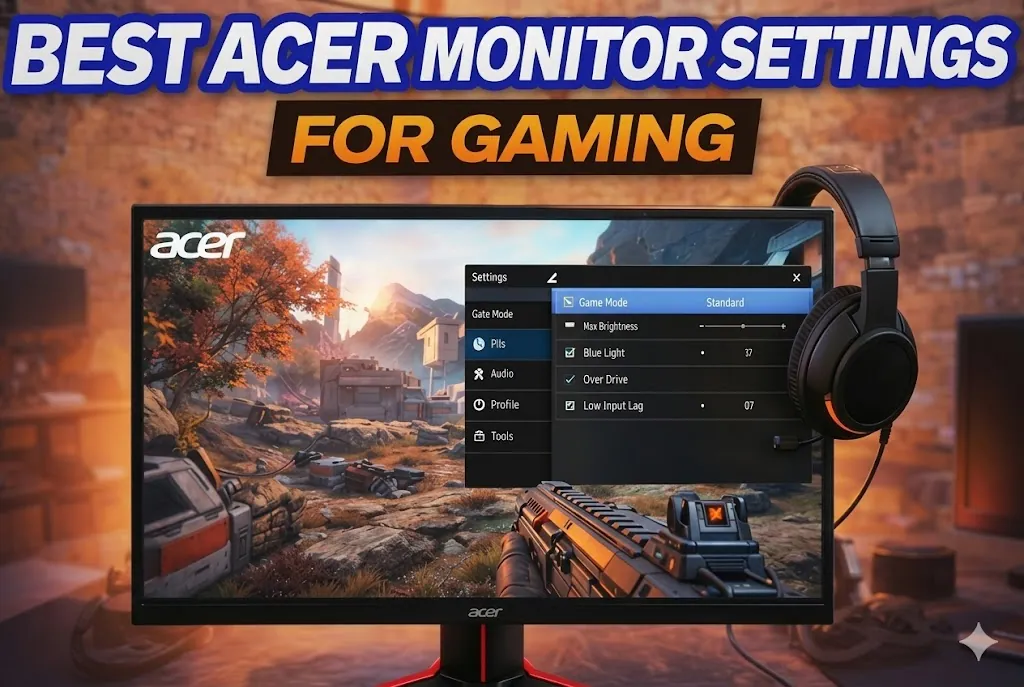
If you want smoother gameplay, sharper visuals, and faster response during competitive matches, adjusting the best Acer monitor settings for gaming is essential. Acer monitors are also used by many gamers due to their high refresh rates, low response times and color performance. The default settings, however, are not always game-optimized. It can be said that with the correct settings of your Acer gaming monitor, you can reduce motion blur and improve the image quality of the display in a dark environment and the overall performance. It is possible that you are playing a fast-paced first-person shooter, it is possible that you are playing a team-based esports game, it is possible that you are playing an open-world adventure game that engages the world around you, but the right settings will make the difference between playing a game. In this manual, the optimal monitor settings are described to play games on Acer monitor, which includes monitor brightness, monitor contrast, monitor refresh rate, monitor response time, and monitor color control, and additional gaming features, including FreeSync or Adaptive Sync. With proper settings, you can also unleash the full potential of your Acer monitor and thus you will be able to play the games in a smoother, clearer and more responsive gameplay. 1. Set the Highest Refresh Rate The first step in optimizing Acer monitor settings for gaming is to make sure the maximum possible refresh rate is enabled. Acer gaming monitors are available with refresh rates of 144Hz, 165Hz, or even 240Hz, which are much more comfortable to use than a typical 60Hz monitor. The increased refresh rate enables the display to refresh more often and therefore less motion blur is produced and the fast-paced games are more responsive. To take advantage of this feature, ensure the refresh rate is enabled in your Windows display settings or graphics control panel. This is because monitors occasionally support higher refresh rates, though they are also configured to 60Hz. After the appropriate refresh rate is chosen, on-screen actions become considerably smoother, which provides players with a superior visual experience and a faster reaction time in competitive games. To change the refresh rate: Higher refresh rates reduce motion blur and make fast movements look more fluid, which is especially important for competitive games like shooters or racing games. 2. Adjust Brightness and Contrast Proper brightness and contrast settings help you improve visibility and contrast during gameplay. If you adjust the brightness too high and too low, you cannot play the game properly. If you keep the brightness high, you will feel rough and straning the yeys in the long run. When you keep your display brightness too low, then many details will be difficult to read in the darker parts of the game. If you want to play the game more smoothly and faster, without eye strain, you need to adjust the screen brightness and contrast to a perfect setting for better Acer monitors gaming. Know the proper adjustment below: Recommended gaming values: These settings provide a balanced image where bright areas remain clear while dark scenes still reveal important details. 3. Enable Game Mode Acer gaming monitors, most of which contain an in-built Game Mode that boosts visual performance in the course of gaming. This option automatically adjusts the color, contrast, and response time settings to improve game clarity and responsiveness. The display settings can be optimized with the help of Game Mode, which will bring important objects in the screen to the fore and minimize the input lag. The alternative will allow users to have an immersive, more seamless gaming experience without having to manually tune different settings on the monitors. Typical options include: If available, Action Mode is usually the best general choice for fast-paced gaming. 4. Set Response Time to Extreme or Fast Response time is used to define the speed at which transitions occur between color pixels. Ghosting and motion blur can be minimized by setting the response time to Fast or Extreme which are common in high-speed scenes in games. This modification is used to make movement appear sharper and smoother on the screen. The majority of Acer gaming monitors support changing the response time in the settings menu to boost clarity and overall performance in intense games. Recommended setting: Response Time: Extreme or FastPractical Steps to Set Response Time on an Acer Monitor Step 1: Locate and Access the Menu The first step is finding the control joystick, which is almost always located on the back of your Acer monitor in the bottom-right corner. When you press it, the main On-Screen Display (OSD) menu will appear on the bottom-right of the screen. In the example image below, you can see the main menu is active. Your monitor’s joystick allows you to navigate. Currently, we need to move from the ‘Picture’ icon (which is default) downwards to the ‘Gaming’ section. Step 2: Enter the Gaming Menu Once you navigate down, use the joystick to click ‘Right’ to enter the highlighted section. As shown in the image below, the left column now confirms that ‘Gaming’ is the active menu (highlighted in orange). The right side of the screen now displays all of Acer’s performance settings, including ‘Overclock’ and ‘FreeSync.’ You can now see the option we are looking for: ‘Response Time’ (currently set to Normal). Step 3: Select and Apply ‘Extreme’ Finally, highlight ‘Response Time’ and click ‘Right’ again to open the selection list. In this final image, you can see the menu has changed to a vertical selection list. To apply the setting, move the joystick up or down to highlight ‘Extreme’. (Note that ‘Normal’ still has the checkmark in this specific photo). Once ‘Extreme’ is highlighted, click the joystick in (or press ‘Right’) to finalize your choice. The menu will confirm the change, and you are ready for smooth, high-speed gaming. However, if you notice visual artifacts or overshoot, switching to Fast instead of Extreme may provide a better balance. 5. Enable FreeSync or Adaptive Sync If your
Best Acer Monitor Settings for Gaming: Complete Guide for Smooth Gameplay Read More »
Blog, Gadget