
Best Contrast Setting for Gaming Monitor: The Complete Guide to Getting It Right
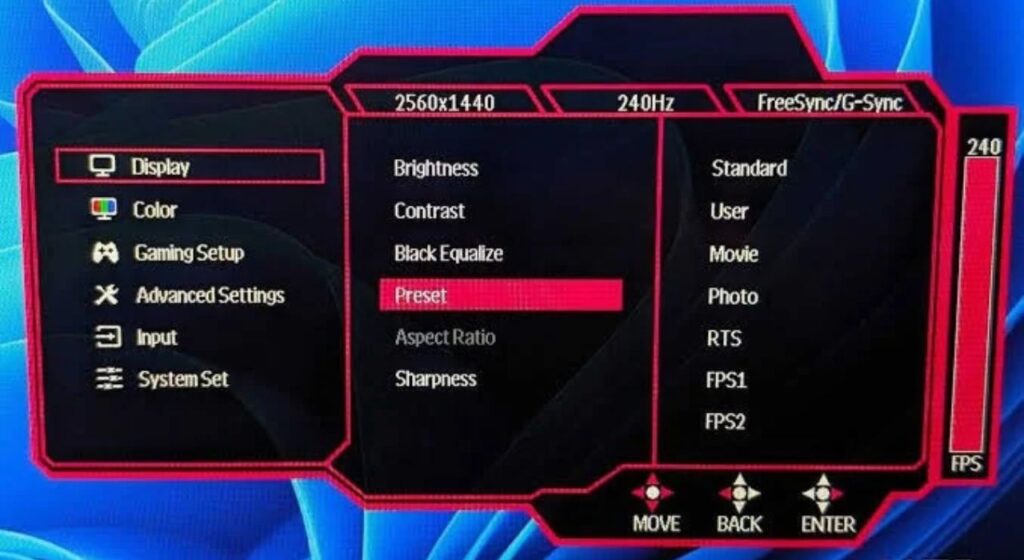
Most gamers spend a lot of time thinking about refresh rate, resolution, and response time — and almost no time thinking about contrast. That’s a mistake. Contrast is the single setting that has the biggest impact on how your games actually look. It controls the gap between the darkest blacks and the brightest whites on your screen. and it is important to know the best Contrast Setting for Gaming Monitor. Get it right and games look rich, deep, and detailed. Get it wrong and you’re either losing shadow detail in dark corners or crushing bright scenes into a washed-out mess. The frustrating part is that there’s no one universal number that works for every monitor. A 75% contrast setting on one panel behaves completely differently on another. Your room lighting, your panel type, and even what kind of games you play all factor into what the right contrast level actually is. This guide walks you through everything you need to know — from understanding what contrast actually does, to finding your ideal setting, to knowing when to adjust it for different situations. What Contrast Actually Does (And Why It Matters for Gaming) When you adjust the contrast slider in your monitor’s OSD (the on-screen menu you pull up with the buttons on the side or bottom of your monitor), you’re controlling the white level — how bright the brightest parts of the image can get relative to the darkest parts. If the contrast is too high, the monitor tries to push the brightness beyond what the panel can actually display. The result is what’s called “clipping” — bright areas like a sunlit sky, a white wall, or a character’s clothing all merge into a single flat, featureless white. You lose all the detail in those highlights, and they just look blown out. If contrast is set too low, the image looks flat and washed out. Colors lose punch, blacks look gray instead of black, and the whole picture feels dull and lifeless. The sweet spot is where you can see full detail in both the brightest and darkest parts of an image simultaneously. That’s the goal, and it sounds simple — but getting there takes a bit of attention. Static vs. Dynamic Contrast: Know the Difference Before You Touch Anything Before adjusting anything, you need to understand the difference between static and dynamic contrast, as they are fundamentally different and should be treated as such. Static contrast ratio is the real, fixed measurement of a panel’s contrast capability — the actual difference between the brightest white and the darkest black the screen can display simultaneously. This is the number that actually matters when comparing monitors. An IPS panel typically has a static contrast ratio of around 1,000:1. VA panels reach 3,000:1 to 5,000:1. OLED panels effectively have infinite contrast because black pixels simply turn off. Dynamic contrast ratio is a feature in which the monitor automatically adjusts backlight brightness based on what’s on screen — dimming it when a dark scene is playing and cranking it up during bright scenes. Manufacturers love advertising absurdly high dynamic-contrast figures like 1,000,000:1, but those numbers are essentially meaningless in real-world use. Dynamic contrast makes your backlight pulse up and down constantly, which looks jarring during gameplay — especially during scenes that mix dark and bright elements, like a torch-lit cave entrance with sunlight streaming in from outside. The verdict from virtually every display expert and calibration professional: turn dynamic contrast off. Leave it disabled. It can also add 4–8ms of input lag on some monitors as the display processing adjusts the backlight, which is the last thing competitive gamers need. Find the setting in your OSD (it may be labeled “DCR,” “Dynamic Contrast,” “Smart Contrast,” or “Contrast Enhancement”) and switch it off before adjusting anything else. What Contrast Percentage Should You Actually Set? Here’s what the research and expert calibration guides consistently agree on: most monitors perform best between 70% and 80% contrast, and the factory default — usually somewhere between 50% and 75% depending on the brand — is often already close to correct. The key number to avoid is 100%. At maximum contrast, the vast majority of IPS and VA panels will clip highlights. Detail disappears from bright areas, whites look harsh and unnatural, and color accuracy suffers. Pushing contrast above 80% on most gaming monitors introduces a visible pink or yellow tint to what should be clean white areas. Meanwhile, dropping below 40–50% flattens midtones and makes the image look gray and lifeless. As a practical starting point: How to Actually Find Your Monitor’s Best Contrast Setting Reading numbers is useful, but the real-world method of setting contrast is straightforward and takes about five minutes. Here’s the process used by display calibrators and reviewed by monitor experts. Step 1: Reset your monitor to factory defaults first. Go into your OSD and find the reset option. This gives you a clean, known starting point before you make any changes. Step 2: Turn off everything that might interfere. Disable Dynamic Contrast, Eco Mode, Color Boost, Vivid Mode, and any other automatic picture enhancement. These adjust things on their own and make it impossible to calibrate reliably. Stay away from “FPS Mode,” “Racing Mode,” and similar presets — they typically oversaturate colors and artificially inflate sharpness, which looks aggressive but isn’t accurate. Step 3: Set your picture mode to Standard or User mode. This unlocks all the individual settings including brightness and contrast. Other preset modes often lock out manual adjustments. Step 4: Load a white level test pattern. You can find these easily by searching “monitor contrast test pattern” in Google Images, or visit websites like Lagom.nl that have dedicated monitor calibration test pages. A white level test pattern shows a series of near-white shades against a white background. Step 5: Raise the contrast slider until the near-white shades start to merge into solid white — that’s where clipping begins. Then back it off slowly until you can clearly distinguish each
Best Contrast Setting for Gaming Monitor: The Complete Guide to Getting It Right Read More »
Blog