Buying a gaming monitor in 2026 is both exciting and overwhelming. Walk into any electronics store or browse Amazon for five minutes, and you’ll find hundreds of options — all throwing specs at you like refresh rates, panel types, resolution tiers, and response times. Most of it looks the same at first glance.
But here’s the thing: the wrong monitor can genuinely hold your gaming back. And the right one can completely transform how games feel and look.
This guide breaks everything down in plain English — no fluff, no jargon overload. By the end, you’ll know exactly what to look for and what to skip.
How to Choose a Monitor for Gaming: Let’s Discuss
Start With Your PC or Console Setup
Before you look at a single monitor spec, check what you’re actually running games on. Your GPU (graphics card) and CPU set the ceiling for what any monitor can do for you.
If your PC averages around 100 frames per second in the games you play, buying a 360Hz monitor won’t make gameplay smoother — it’ll just expose instability. A monitor never fixes performance problems. It shows them more clearly.
So first, run a few of your regular games and check your real-world FPS using a tool like MSI Afterburner or the in-game counter. Then build your monitor choice around that number.
For console gamers: The PS5 and Xbox Series X both cap out at 120fps, so anything above 144Hz is more than enough for you. Focus your budget on resolution, panel quality, and HDMI 2.1 support instead.
Refresh Rate: The Spec That Changes How Games Feel
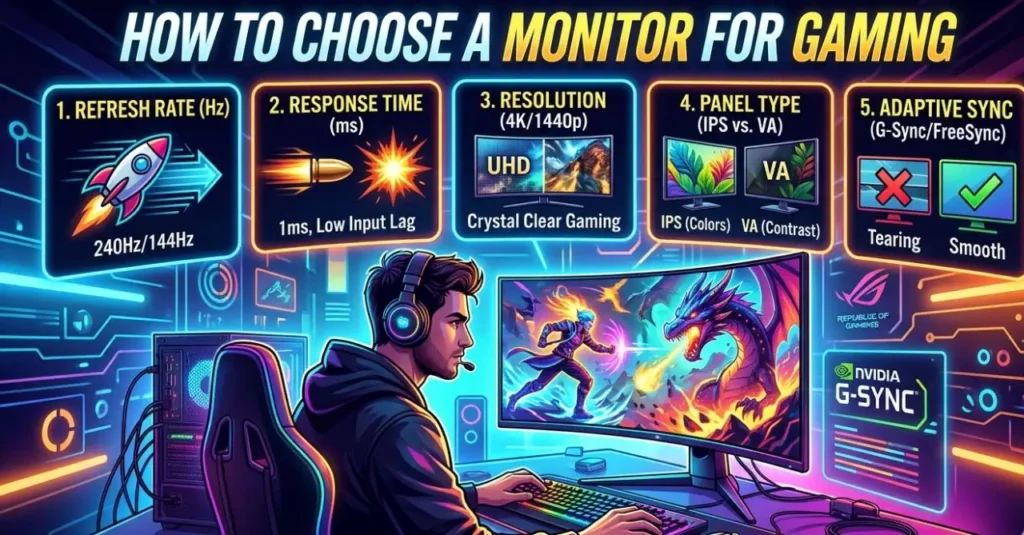
The refresh rate is measured in Hz and indicates how many times per second your screen updates the image. This is the first spec that directly impacts how smooth gameplay feels.
60Hz — The Old Standard
At 60Hz, mouse movement feels slightly sluggish, and fast motion in shooters or racing games looks blurry. It’s still playable, but in 2026, 60Hz is no longer a gaming standard — it’s a limitation. Once you game on something higher, going back feels like a handicap.
144Hz to 180Hz — The Sweet Spot
This is where most gamers should land. The jump from 60Hz to 144Hz is immediately noticeable to essentially everyone on the first day. Games feel crisp, responsive, and smooth. Camera pans look clean instead of choppy.
In 2026, most new gaming monitors — even budget ones — ship at 165Hz or 180Hz by default. If you’re buying today and settling for plain 144Hz, you’re already one generation behind. The good news is that modern mid-range GPUs can comfortably hit 120–180fps at 1080p or 1440p in most games, so this range is very practical.
240Hz and Above — For Competitive Players
At 240Hz and beyond, the benefits get narrower. These refresh rates are designed for competitive players grinding games like CS2, Valorant, or Apex Legends, where every millisecond counts. If your PC can consistently push 240+ FPS in those titles, you’ll feel the difference.
But here’s the honest truth: if your system dips to 90fps on a 240Hz monitor, you’re still only seeing 90 new frames per second. Higher refresh rates reward consistency, not just raw numbers.
For most people — especially those who play a mix of story games, shooters, and RPGs — 165-180Hz is the right choice.
Resolution: Match It to Your Screen Size and GPU
Resolution determines how sharp and detailed everything looks. But it also directly multiplies the work your GPU has to do. Picking the wrong resolution for your hardware leads to constant performance compromises.
1080p (Full HD — 1920×1080)
1080p is still completely valid in 2026, especially for competitive gaming. If you’re playing fast-paced shooters and want the highest possible refresh rate without killing your GPU, 1080p is the practical choice. It’s cheap to run, and at 24 inches, it looks perfectly sharp.
Where 1080p falls apart: anything larger than 24–25 inches. On a 32-inch screen, 1080p can look noticeably soft around text and edges.
1440p (QHD — 2560×1440)
This is the mainstream sweet spot for gaming in 2026. The jump from 1080p to 1440p on a 27-inch monitor is a visible sharpness upgrade that no in-game graphics setting can replicate. Colors look richer, distant objects are sharper, and the overall image feels more immersive.
A mid-range GPU like the RTX 4070 or RX 7800 XT can handle 1440p at high settings in most games. If you’re gaming on a 27-inch monitor and can afford a decent GPU, this is the resolution to target.
4K (UHD — 3840×2160)
4K looks jaw-dropping, especially in open-world games and cinematics. But running 4K well requires serious GPU power. If you try to push 4K without a high-end GPU like an RTX 4080 or better, you’ll end up dropping graphics settings just to hit acceptable frame rates — which defeats the purpose.
Also worth noting: 4K on a 24-inch screen is often overkill. The human eye can’t resolve that level of pixel density at a normal desk distance. 4K makes the most sense at 32 inches and above.
Panel Type: The Biggest Factor in Image Quality and Feel
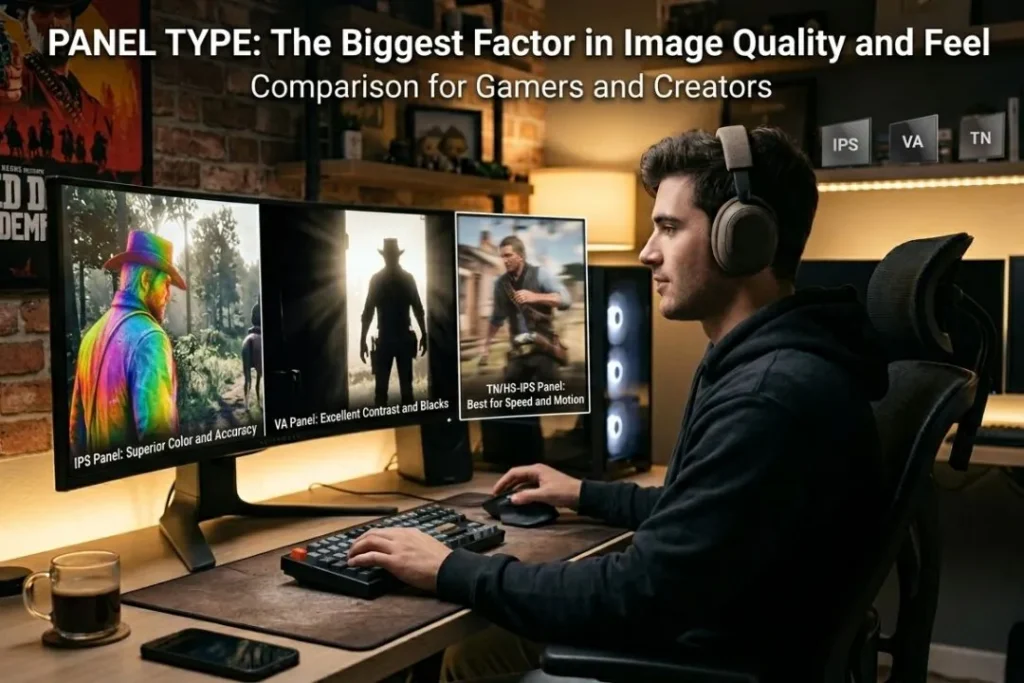
The panel is the actual display technology behind the glass. It affects color accuracy, contrast, motion clarity, and viewing angles. This is one of the most important decisions you’ll make.
IPS — The All-Rounder
IPS (In-Plane Switching) panels are the safest choice for most gamers. They offer accurate, vibrant colors, wide viewing angles, and fast enough response times for competitive play. Modern IPS monitors reach 165Hz–240Hz and beyond.
If you’re not sure what to buy and want a monitor that handles games, movies, and productivity equally well, go for an IPS. It’s the most reliable category across the board.
VA — Best Contrast on a Budget
VA (Vertical Alignment) panels offer deeper blacks and better contrast than IPS, which makes dark scenes in horror games or space settings look genuinely dramatic. They’re usually cheaper too.
The trade-off is motion performance. In fast games, VA panels can produce a trailing or smearing effect — especially in dark areas. For casual and single-player gaming, VA is fine. For competitive shooters, it’s not ideal.
TN — Mostly Outdated
TN (Twisted Nematic) panels were the go-to for competitive gamers thanks to their fast response times. But in 2026, IPS panels have caught up significantly in speed while offering far better color and viewing-angle performance. Unless you’re on an extreme budget or building a dedicated esports setup, TN is hard to recommend anymore.
OLED — The Best You Can Get
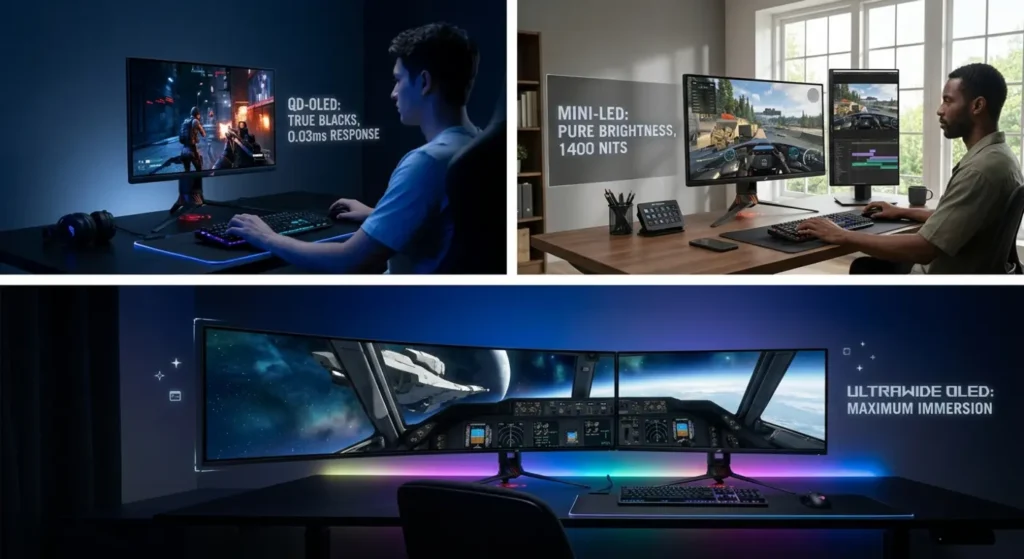
OLED panels deliver the best visual experience available today, full stop. Blacks are truly black — not dark gray like LCD panels. Motion clarity is virtually perfect. Response time is effectively instant.
Fast-paced shooters, open-world games, horror titles — everything looks better on OLED. The difference in a dark room is remarkable.
The main concern with OLED is burn-in — permanent image retention from static elements like HUD icons or desktop taskbars. It’s less of an issue than it was a few years ago, but it requires some care. Avoid leaving static images on screen for hours. If you’re going to use the monitor heavily for both gaming and desktop work, factor that into your decision.
OLED prices have been steadily dropping and are now more accessible than ever, though they still cost more than IPS panels.
Mini-LED — The HDR Powerhouse
Mini-LED is a newer category that sits between traditional IPS and OLED. These monitors use thousands of small LED zones behind the panel, enabling very high peak brightness while maintaining strong contrast.
If you want real, impactful HDR without worrying about OLED burn-in — especially in a bright room — Mini-LED is worth serious consideration. It’s become a major category in 2026 for high-end gaming monitors.
Response Time: What the Numbers Actually Mean
You’ll see “1ms” plastered on almost every gaming monitor box. Here’s what you actually need to know.
Response time measures how quickly a pixel transitions from one color to another. There are two different measurements used:
- GtG (Gray-to-Gray): How fast a pixel changes between two shades of gray. This is the number most manufacturers advertise.
- MPRT (Moving Picture Response Time): How long a pixel stays visible during motion. This is more representative of real-world motion clarity.
The “1ms” on the box almost always refers to GtG under ideal lab conditions. In actual gameplay, response times vary depending on what’s on screen and how aggressively the monitor’s overdrive (a setting that speeds up pixel transitions) is applied.
Too much overdrive causes inverse ghosting — bright halos that trail moving objects. Too little causes standard blur. Look for reviews that show actual in-game response time performance, not just the marketing number.
For most gamers, anything under 4ms GtG on a quality IPS panel is perfectly fine. On OLEDs, response times are so fast that this becomes a non-issue entirely.
Adaptive Sync: G-Sync vs FreeSync
This is a feature every gaming monitor you buy in 2026 should have. Here’s why.
Your GPU doesn’t always output frames at a perfectly steady rate. Frame rate fluctuates — especially in demanding games. Without adaptive sync, when your frame rate drops below your monitor’s refresh rate, you get screen tearing (a visible horizontal split in the image) or have to enable V-Sync, which introduces input lag.
Adaptive sync solves both problems by letting the monitor adjust its refresh rate in real time to match whatever your GPU is outputting.
- G-Sync: NVIDIA’s proprietary standard. Requires a dedicated hardware module in the monitor and is typically more expensive.
- FreeSync: AMD’s open standard. Most modern monitors support FreeSync, and many are also certified as G-Sync Compatible — meaning they work well with NVIDIA GPUs too.
For most buyers, a FreeSync Premium or G-Sync Compatible monitor gives you everything you need at a lower price than a full G-Sync-certified model.
Screen Size: How Big Should You Go?
The right size depends on where you sit, your resolution, and what you’re playing.
- 24 inches: Best for 1080p competitive gaming. Fast, focused, and easy to take in the whole screen at once. Standard for esports setups.
- 27 inches: The most popular all-around size. Ideal for 1440p. Works great for both competitive and immersive gaming without feeling too large on a desk.
- 32 inches: Great for 4K or 1440p if you sit further back. More cinematic for single-player games. Takes up significant desk space.
- Ultrawide (34 inches and up): Exceptional for immersion in RPGs, racing simulators, and open-world games. Not all games support ultrawide natively, but support has improved significantly.
One important rule: match resolution to screen size. 1080p on a 32-inch display looks noticeably soft. 4K on a 24-inch screen is mostly wasted pixel density. Pair them correctly and the screen disappears — you just see the game.
Ports and Connectivity: Don’t Overlook This
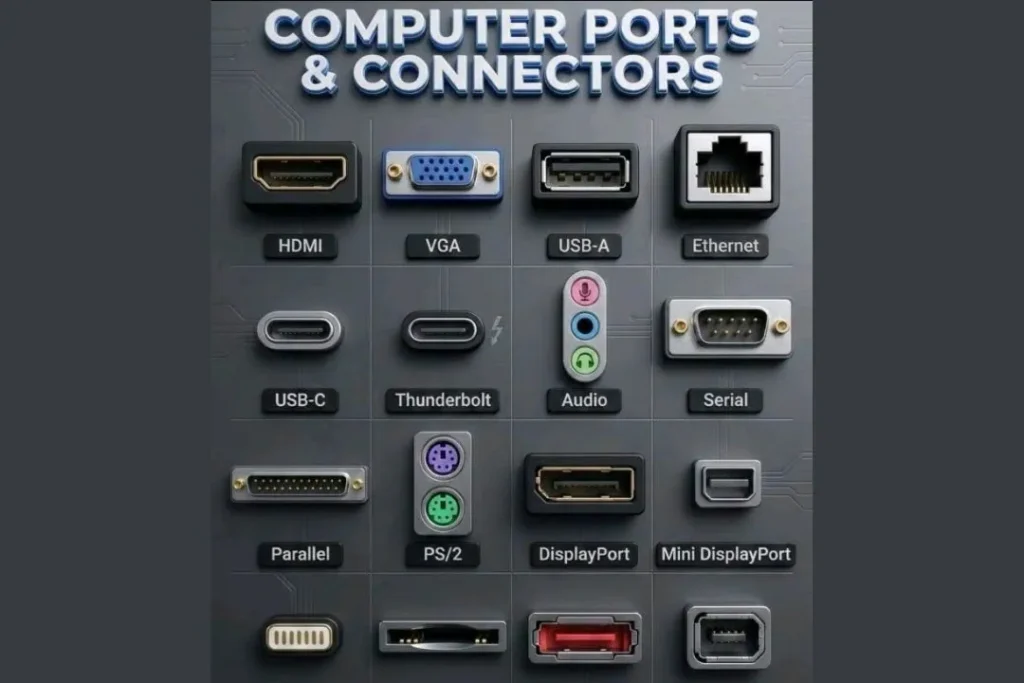
Before you buy, check the ports. This is where many buyers get surprised after the fact.
- DisplayPort 1.4 or 2.1: Required for high refresh rates at 1440p and 4K on PC. Most gaming monitors include at least one.
- HDMI 2.1: Essential for console gaming at 4K/120fps. If you’re connecting a PS5 or Xbox Series X, make sure the monitor has HDMI 2.1.
- USB-C/Thunderbolt: Useful for laptop gamers. Some monitors can receive a video signal and charge your laptop simultaneously through a single cable.
- USB Hub: A built-in USB hub lets you plug in mice, keyboards, or headsets directly to the monitor. Convenient for cable management.
Budget Guide: What You Can Realistically Get
Here’s a quick breakdown by price range for 2026:
Under $150: You can get a solid 1080p IPS monitor at 165Hz. Great starting point for first builds or competitive gaming on a budget. The AOC 24G2SP is a popular example — 1080p at 165Hz on an IPS panel for around $120–$140.
$150–$300: This is where 1440p 144Hz–165Hz IPS monitors live. Excellent value for most gamers. You’ll also start finding FreeSync Premium and G-Sync Compatible options here.
$300–$500: Entry-level OLED and Mini-LED monitors begin to appear. 1440p at 240Hz on an IPS panel, or budget 4K options. Significant jump in quality.
$500+: Premium OLED, 4K high refresh rate, and ultrawide territory. These are serious long-term investments that make the most sense if your GPU can support them.
Quick Summary: How to Choose a Monitor for Gaming
| What You Play | What to Prioritize |
| Competitive FPS (Valorant, CS2, Apex) | High refresh rate (240Hz+), 1080p, fast response |
| Open-world / story games | 1440p or 4K, OLED or IPS, 165Hz+ |
| Console gaming (PS5/Xbox) | HDMI 2.1, 32 inches, 4K or 1440p |
| Mixed use (gaming + work) | 27-inch 1440p IPS, 165Hz, adaptive sync |
| Budget build | 24-inch 1080p IPS, 165Hz, FreeSync |
Your choice of gaming monitor comes down to what you actually play most. Competitive FPS players should chase refresh rates over resolution — 240Hz at 1080p beats a sharp screen that stutters. Story and open-world gamers benefit from flipping that logic entirely, prioritizing OLED or IPS panels at 1440p or 4K for rich, immersive visuals. Console players need HDMI 2.1 and a 32″ screen to get the most out of their hardware.
For everyone else, the 27″ 1440p IPS at 165Hz is the sweet spot — fast enough for gaming, sharp enough for work, and versatile enough to do both without compromise. On a tight budget, a 24″ 1080p at 165Hz with FreeSync still delivers a genuinely smooth experience. It’s not flashy, but it gets the job done without regret.
Final Thoughts
The perfect gaming monitor doesn’t exist — the right one for you does. Start with your GPU and work backward. Match the resolution to what your hardware can actually push, pick a panel that fits how you play, and make sure adaptive sync is in the mix. That’s the whole framework, really.
One thing people get wrong is chasing numbers that their system can’t back up. A 240Hz panel running at 90fps isn’t doing you any favors over a 144Hz one. A 4K display paired with a mid-range GPU just means you’re constantly dropping settings to keep things playable, which defeats the point of buying it.
Get the basics right — refresh rate, resolution, panel type, adaptive sync — and the rest takes care of itself. A well-matched monitor makes every game feel noticeably better, not because the specs look good on paper, but because everything on screen actually feels the way it’s supposed to.