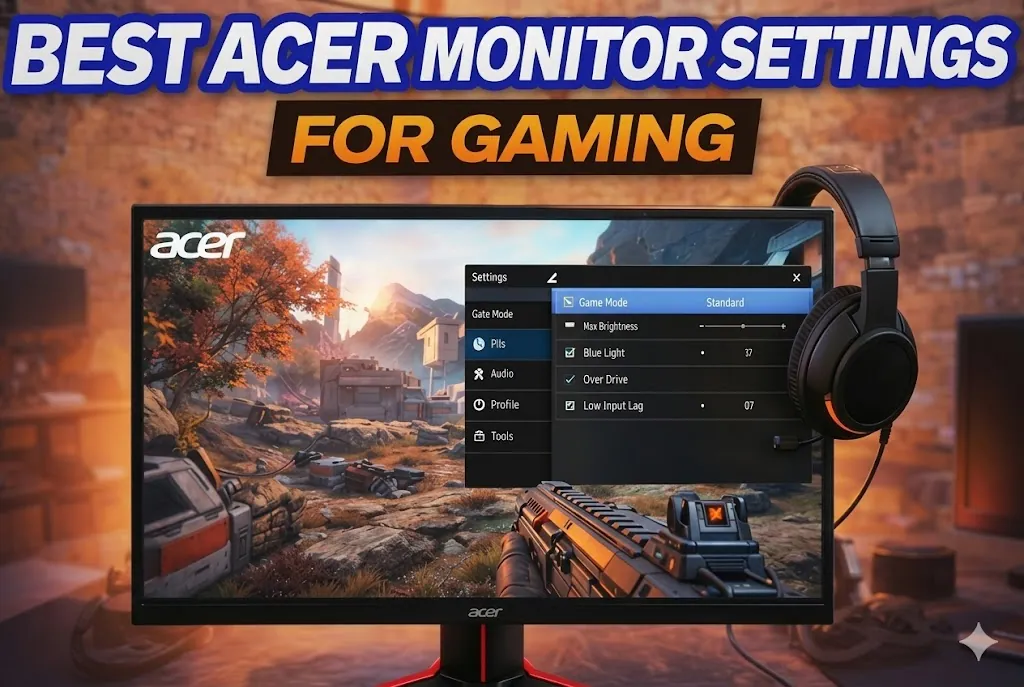
If you want smoother gameplay, sharper visuals, and faster response during competitive matches, adjusting the best Acer monitor settings for gaming is essential. Acer monitors are also used by many gamers due to their high refresh rates, low response times and color performance. The default settings, however, are not always game-optimized.
It can be said that with the correct settings of your Acer gaming monitor, you can reduce motion blur and improve the image quality of the display in a dark environment and the overall performance. It is possible that you are playing a fast-paced first-person shooter, it is possible that you are playing a team-based esports game, it is possible that you are playing an open-world adventure game that engages the world around you, but the right settings will make the difference between playing a game.
In this manual, the optimal monitor settings are described to play games on Acer monitor, which includes monitor brightness, monitor contrast, monitor refresh rate, monitor response time, and monitor color control, and additional gaming features, including FreeSync or Adaptive Sync. With proper settings, you can also unleash the full potential of your Acer monitor and thus you will be able to play the games in a smoother, clearer and more responsive gameplay.
1. Set the Highest Refresh Rate
The first step in optimizing Acer monitor settings for gaming is to make sure the maximum possible refresh rate is enabled. Acer gaming monitors are available with refresh rates of 144Hz, 165Hz, or even 240Hz, which are much more comfortable to use than a typical 60Hz monitor. The increased refresh rate enables the display to refresh more often and therefore less motion blur is produced and the fast-paced games are more responsive.
To take advantage of this feature, ensure the refresh rate is enabled in your Windows display settings or graphics control panel. This is because monitors occasionally support higher refresh rates, though they are also configured to 60Hz. After the appropriate refresh rate is chosen, on-screen actions become considerably smoother, which provides players with a superior visual experience and a faster reaction time in competitive games.
To change the refresh rate:
- Right-click on your desktop
- Open Display Settings
- Go to Advanced Display Settings
- Select the highest available refresh rate
Higher refresh rates reduce motion blur and make fast movements look more fluid, which is especially important for competitive games like shooters or racing games.
2. Adjust Brightness and Contrast
Proper brightness and contrast settings help you improve visibility and contrast during gameplay. If you adjust the brightness too high and too low, you cannot play the game properly. If you keep the brightness high, you will feel rough and straning the yeys in the long run. When you keep your display brightness too low, then many details will be difficult to read in the darker parts of the game. If you want to play the game more smoothly and faster, without eye strain, you need to adjust the screen brightness and contrast to a perfect setting for better Acer monitors gaming. Know the proper adjustment below:
Recommended gaming values:
- Brightness: 70–80
- Contrast: 50–60
These settings provide a balanced image where bright areas remain clear while dark scenes still reveal important details.
3. Enable Game Mode
Acer gaming monitors, most of which contain an in-built Game Mode that boosts visual performance in the course of gaming. This option automatically adjusts the color, contrast, and response time settings to improve game clarity and responsiveness. The display settings can be optimized with the help of Game Mode, which will bring important objects in the screen to the fore and minimize the input lag. The alternative will allow users to have an immersive, more seamless gaming experience without having to manually tune different settings on the monitors.
Typical options include:
- Action Mode – Best for FPS games
- Racing Mode – Ideal for racing titles
- Sports Mode – Optimized for sports games
If available, Action Mode is usually the best general choice for fast-paced gaming.
4. Set Response Time to Extreme or Fast
Response time is used to define the speed at which transitions occur between color pixels. Ghosting and motion blur can be minimized by setting the response time to Fast or Extreme which are common in high-speed scenes in games. This modification is used to make movement appear sharper and smoother on the screen. The majority of Acer gaming monitors support changing the response time in the settings menu to boost clarity and overall performance in intense games.
Recommended setting:
- Response Time: Extreme or Fast
However, if you notice visual artifacts or overshoot, switching to Fast instead of Extreme may provide a better balance.
5. Enable FreeSync or Adaptive Sync
If your Acer gaming monitors supports AMD FreeSync or Adaptive Sync, enabling it can greatly improve gameplay smoothness. And this is what you set your refresh rate to the frame rate of your graphics card to minimize as much as possible the screen tearing and stuttering that may happen when you are gaming. When this does occur to be the case and the refresh rate and the frame rate are synchronized, the motion will become far smoother and more stable. This is also an option available to both your monitor and graphics setting and this can give you a better and more enjoyable gaming experience particularly when playing a fast-paced game.
Benefits include:
- Reduced screen tearing
- Smoother frame transitions
- More stable gameplay
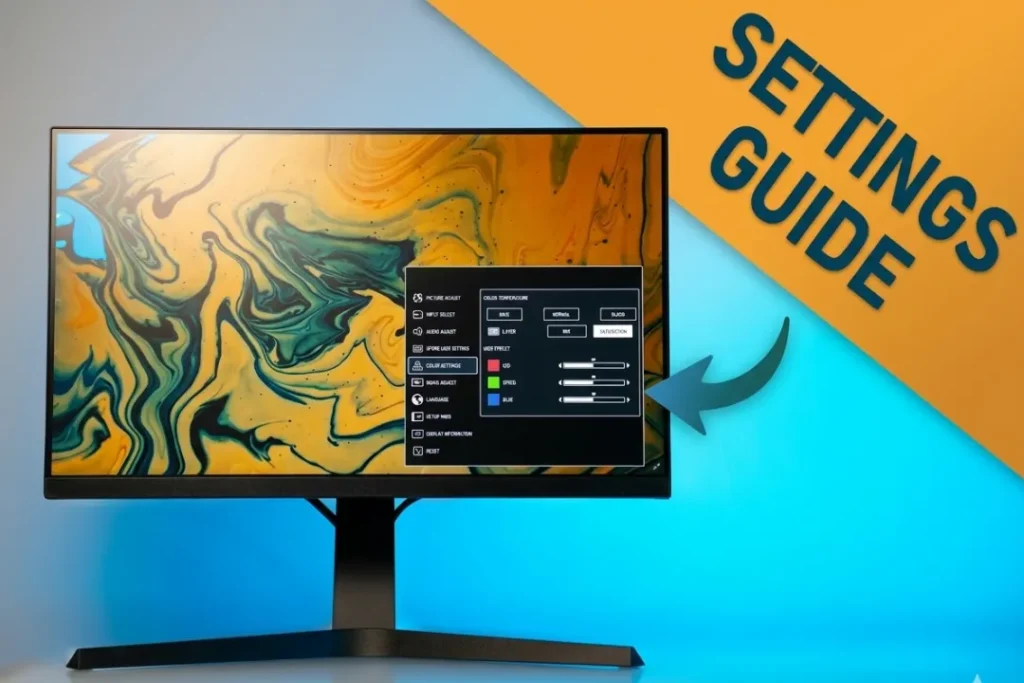
You can enable FreeSync directly from the monitor’s OSD (On-Screen Display) menu and also in your graphics card settings.
6. Optimize Color Settings
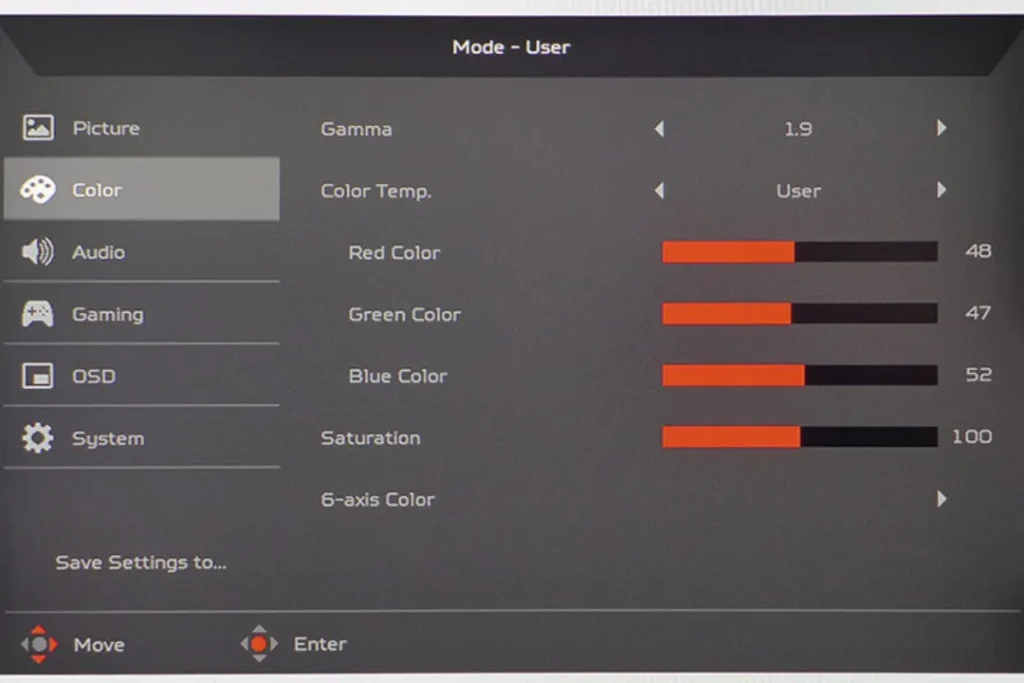
The color settings can be optimized to enhance the general visibility and bring more detail to the game environments. Correct color balance enables emphasizing objects, characters and other significant details on the screen. Color tuning can also help to distinguish enemies or any hidden objects in darker scenes more easily. Acer gaming monitors come in most models with color-adjusting features on the display menu so that you can fine-tune the saturation, temperature and color settings to get a better and more enjoyable gaming experience.
Suggested values:
- Color Temperature: Normal or Warm
- Gamma: 2.2
- Blue Light Filter: Off while gaming
These adjustments maintain natural colors while keeping the image sharp and vibrant.
7. Turn Off Unnecessary Image Processing
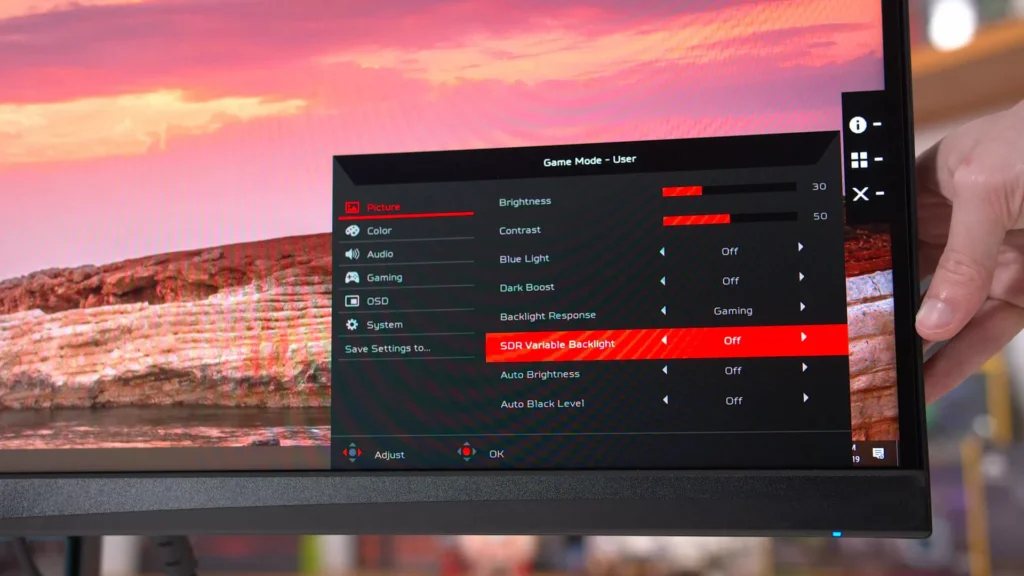
Image processing, such as noise reduction or super-sharp, is also available on other Acer gaming monitors. Even though these options have the potential to make movies or videos more beautiful, in some cases, it can increase the input lag when playing a game. These other processing features are generally disabled in order to offer a more responsive and simpler experience. When switched off, the image is displayed at a higher rate and the monitor has a reduced latency and an enhanced overall gaming performance.
For the best Acer monitor settings for gaming, it’s better to:
- Turn off unnecessary enhancements
- Keep processing features minimal
This ensures faster response and smoother gameplay.
Summary
Finding the best Acer monitor settings for gaming can dramatically improve your overall gaming experience. Acer monitor settings can radically alter the dynamics of the whole gaming experience, refresh rate, response time, and brightness, among others, such as FreeSync, can make the display more fluid and responsive in the game. The ideal settings can also differ a bit as per the nature of the games you are going to play as well as the type of Acer monitor you have. Nevertheless, you will be able to discover the potential of your Acer gaming monitor with the help of the settings proposed in this guide and you will be able to enjoy a higher, more focused and improved gameplay.
Related Post: Best 1440p 240Hz Gaming Monitor in 2026